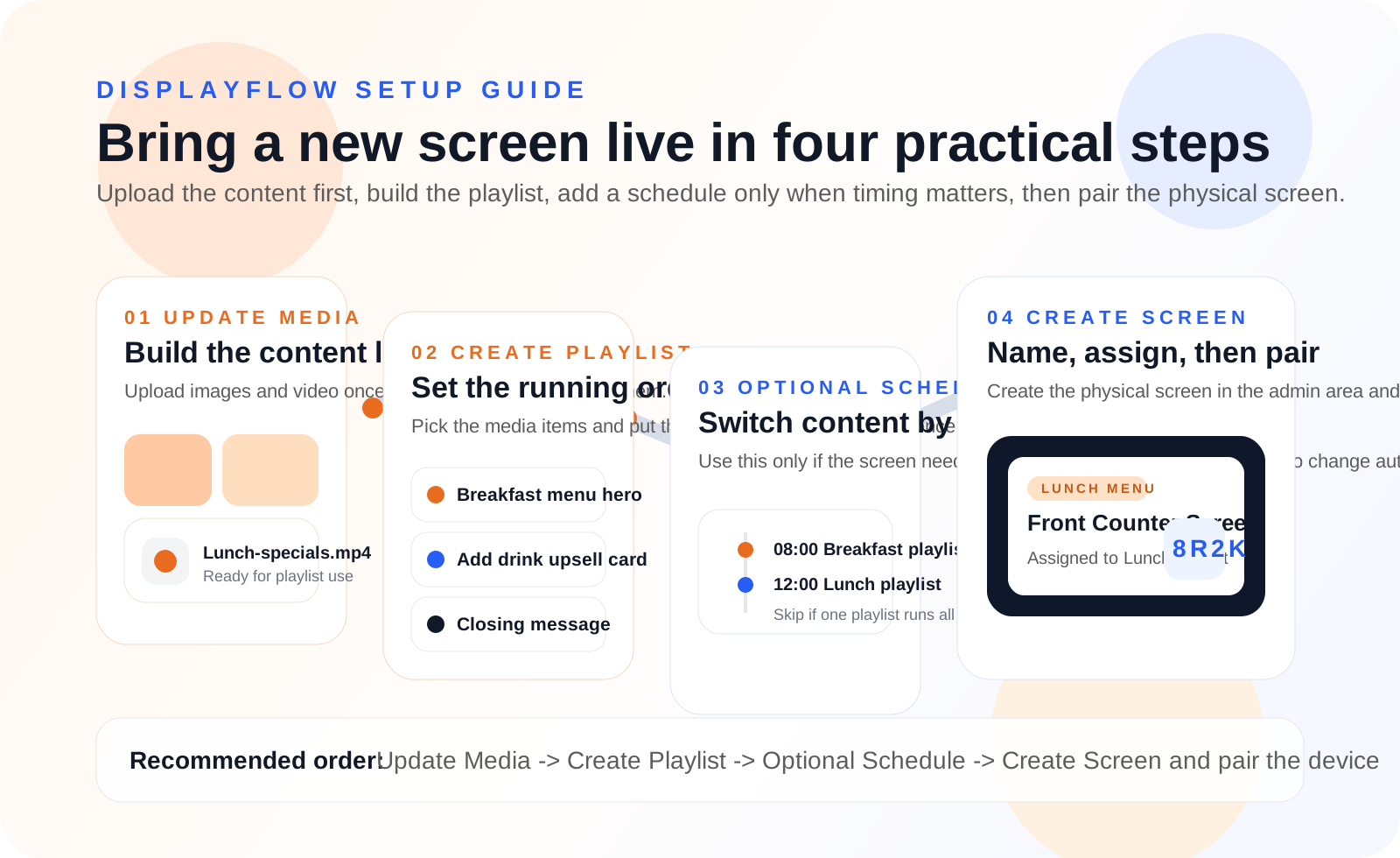
Setup guide

Set up a screen in four simple steps.

Add content, build a playlist, create the screen, then open the screen code in the device browser.

That is the core flow used in the real system. Schedules only come in when the same screen needs timed playlist changes.

Add Content Create Playlist Create Screen Open Screen Code
DisplayFlow workflow overview showing media, playlists, schedules and screens.
Media Library Menu Pages Quiz Questions Playlists Optional Schedules Screens Live Updates Media Library Menu Pages Quiz Questions Playlists Optional Schedules Screens Live Updates
User Flow

The real setup order inside DisplayFlow

Keep the order simple: create the content first, build the playlist, assign it to a screen, then open that screen in the browser.

01 Add your content

Add your content

Start by adding the content you want to show on screen.

  • Upload images and videos in Media.
  • Build menu pages in Menus if you want editable menu boards.
  • Add quiz questions if you want quiz slides in the loop.
Everything on screen starts as media, a menu page or a quiz item.
02 Build the playlist

Build the playlist

Go to Playlists and create the running order for the screen.

  • Add media, menu pages or a random quiz marker.
  • Set the order so the screen plays exactly how you want it to.
  • Use separate playlists when different screens need different content.
For most first screens, one playlist is enough.
03 Create the screen

Create the screen

Go to Screens, add the screen, then choose what it should run.

  • Assign a direct playlist if the screen should play one feed all day.
  • Use a schedule only if the screen needs to switch playlists by time or day.
  • Add a direct ticker only if that screen needs one.
Schedules are optional. They are only needed for timed changes.
04 Open the screen on the device

Open the screen on the device

Use the screen code or screen link from the Screens page on the device that will show the content.

  • Open the generated screen URL in the device browser.
  • Leave the player running on that screen.
  • Future playlist or screen changes will sync from the admin side.
After that, you manage the screen from DisplayFlow rather than from the device itself.
Next Step

Use the guide, then build the first live screen

Once one screen is running, the same flow works again for every extra screen or location.